
Crusource Docs
Teamspace & PermissionsUpdated: 2026-11-06
Overview: Configure role-based access control (RBAC), field-level permissions, and record ownership boundaries.
Roles & Record Visibility Policies
Crusource CRM enforces strict multi-tenant Role-Based Access Control (RBAC) to ensure that sensitive customer information, contract values, and executive notes remain secure and visible only to authorized personnel.
Default Role Hierarchies#
| Role | Scope & Privileges |
|---|---|
| Administrator | Full access to all CRM records, billing, team settings, user management, and API integrations. |
| Sales Manager | Full read/write access to all records owned by members within their assigned team; view team reports. |
| Sales Representative | Access restricted to records they own or records shared collaboratively with them. |
| Read-Only Auditor | Read-only access across assigned modules; cannot create, edit, or delete records. |
Step 1: Navigating to Roles & Permissions#
- In the sidebar, navigate to Settings > Teamspace > Roles & Permissions.
- Review the list of predefined and custom roles.
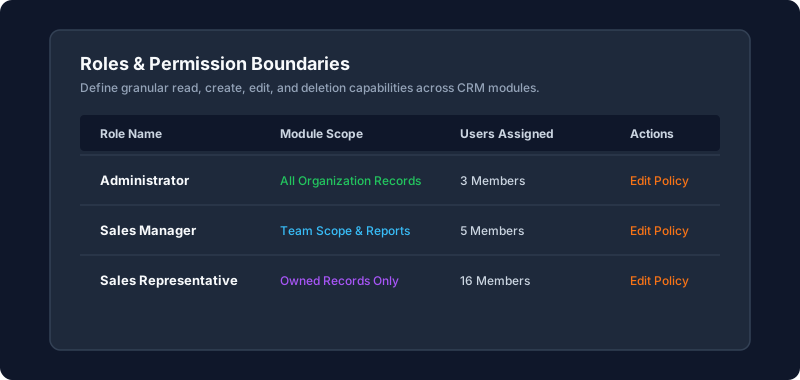
Click to enlarge screenshot
Step 2: Customizing Module-Level Permissions#
- Click Edit next to any custom role.
- For each CRM module (Leads, Deals, Accounts, Contacts, Tasks, Calls, Meetings):
- Create: Can this role author new records?
- Read: Select between
None,Owned Only,Team Only, orAll Organization Records. - Edit: Select between
None,Owned Only,Team Only, orAll Organization Records. - Delete: Restrict permanent deletions to managers or admins only.
Step 3: Setting Field-Level Security#
To restrict sensitive fields (such as commission rates or private deal notes) from general view:
- Scroll down to the Field Security section.
- Select the target module (e.g., Deals).
- Find the sensitive field (e.g.,
Commission Split %orInternal Margins). - Set permission to Hidden or Read-Only for individual roles.
- Click Save Permissions.
[!CAUTION] Changes to role permissions take effect immediately for all active sessions. Affected users will not need to log out.
Need Instant Assistance?
Have a question about Roles & Record Visibility Policies?
Ask Loop AI for step-by-step guidance, permission requirements, or troubleshooting tips directly within the docs.
On this page
