
Account Setup & Workspace Configuration
Welcome to Crusource CRM. This step-by-step guide walks you through logging in for the first time, configuring your personal profile, and reviewing your organization's currency and timezone settings.
Before You Begin (Prerequisites)#
- A valid work email address invited by your administrator or registered via the Crusource signup portal.
- Your password or single-sign-on (SSO) credentials.
Step 1: Sign In to Your Workspace#
- Navigate to your Crusource CRM login URL (e.g.,
https://crm.crusource.com/login). - Enter your work email address and password.
- Click Sign In.
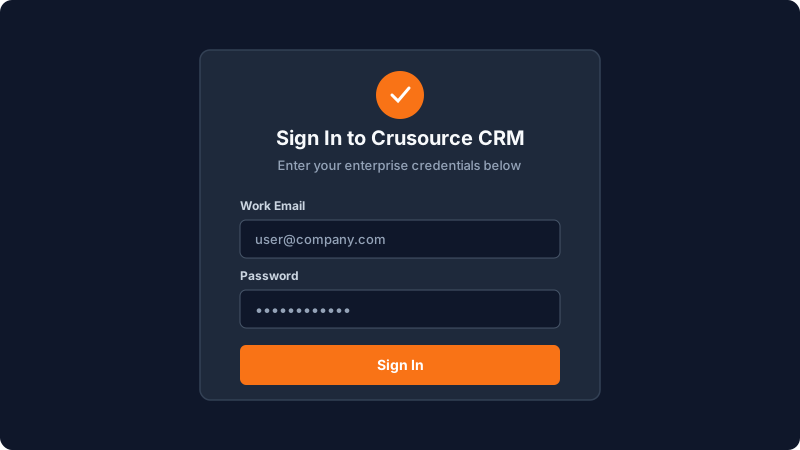
[!NOTE] If your organization uses Google or Microsoft SSO, click Continue with SSO to authenticate securely without entering a password.
Step 2: Complete Your Personal Profile#
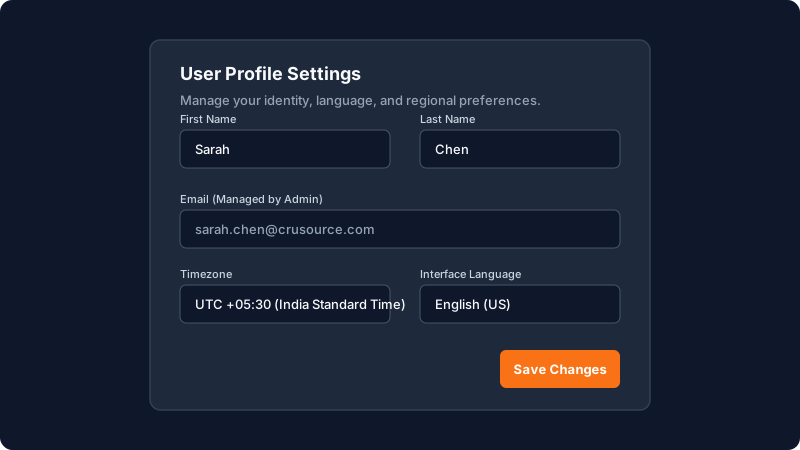
- Click your avatar icon in the bottom-left corner of the sidebar navigation.
- Select My Profile from the menu.
- Verify your First Name, Last Name, and Phone Number.
- Set your default Timezone and preferred Language (English, Dutch, or Arabic).
- Click Save Changes.
Step 3: Configure Organization Defaults (Admins Only)#
If you have an Administrator role:
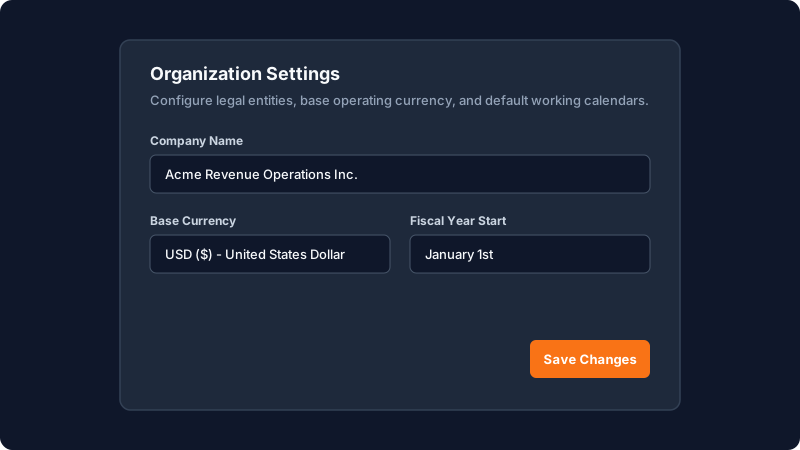
- In the sidebar, navigate to Settings > Organization.
- Verify your Company Legal Name, default Base Currency (e.g., USD, EUR, INR), and fiscal year start date.
- Upload your corporate logo for use in system notifications and shared client documents.
- Click Update Organization Settings.
Troubleshooting & FAQs#
I did not receive my invitation email. What should I do?#
Check your spam or junk folder for an email from notifications@crusource.com. If it is missing, ask your Workspace Admin to resend your invite from Settings > Teamspace > Pending Invites.
Can I change my email address later?#
To preserve audit logs and record attribution, email updates must be authorized by an Administrator under Settings > Users.
Have a question about Account Setup & Workspace Configuration?
Ask Loop AI for step-by-step guidance, permission requirements, or troubleshooting tips directly within the docs.
