
Crusource Docs
Leads & ProspectsUpdated: 2026-11-06
Overview: Step-by-step instructions for preparing your spreadsheet, mapping column headers, and importing hundreds of leads simultaneously.
Bulk Importing Leads via CSV or Excel
Importing a batch of existing sales contacts or event leads is fast and straightforward using Crusource CRM's column-mapping importer.
Before You Begin (Prerequisites)#
- A
.csv,.xlsx, or.xlsspreadsheet file containing lead records. - Ensure your spreadsheet has column headers in the first row (e.g.,
First Name,Last Name,Email,Company,Phone). - Character encoding should be UTF-8 for international names and non-Latin scripts.
Step 1: Open Data Import#
- In the left sidebar, navigate to Settings > Data Administration > Import.
- Or click the Import Leads button directly from the Leads table actions menu.
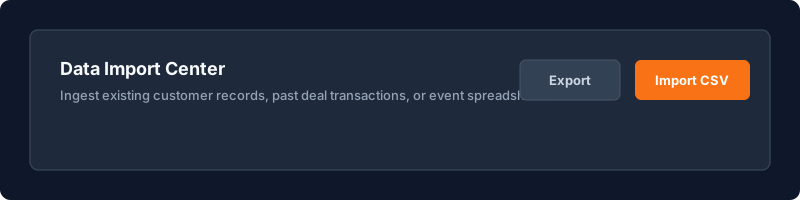
Click to enlarge screenshot
Step 2: Upload Your File#
- Drag and drop your
.csvfile into the upload dropzone, or click Browse Files. - Select target entity: Leads.
- Choose your duplicate handling preference:
- Skip Duplicates: Ignore records if an email already exists in the system.
- Update Existing Records: Overwrite existing lead fields with values from your CSV.
- Click Continue to Column Mapping.
Step 3: Map CSV Headers to CRM Fields#
The importer displays each header from your spreadsheet alongside a suggested CRM field:
| CSV Header (Your File) | Suggested CRM Field | Status |
|---|---|---|
First Name | first_name | ✅ Auto-matched |
Last Name | last_name | ✅ Auto-matched |
Work Email | email | ✅ Auto-matched |
Organization | company_name | ✅ Auto-matched |
Mobile | phone | ✅ Auto-matched |
Source Code | lead_source | ⚠️ Manual Review Needed |
- Review and adjust any unmapped or misaligned fields using the dropdown selectors.
- Click Start Import Process.
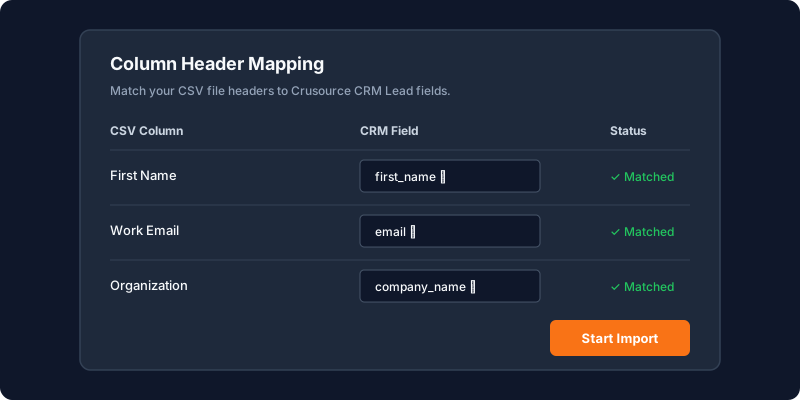
Click to enlarge screenshot
Step 4: Monitor Ingestion and Review Results#
- A live progress bar will display rows processed, records inserted, and skipped duplicates.
- When finished, click View Imported Leads to open the newly populated list.
- If any rows had invalid data (such as malformed email syntax), download the Error Report CSV to review and fix the affected rows.
Troubleshooting & FAQs#
Why were some rows skipped during the import?#
Rows are skipped if:
- The Last Name or Company Name field was blank.
- The email address was already present and Skip Duplicates was selected.
- The email syntax was invalid (e.g., missing
@or domain).
Need Instant Assistance?
Have a question about Bulk Importing Leads via CSV or Excel?
Ask Loop AI for step-by-step guidance, permission requirements, or troubleshooting tips directly within the docs.
On this page
