
Crusource Docs
Deals & PipelinesUpdated: 2026-11-06
Overview: Create deals, move them through sales stages using the drag-and-drop Kanban board, and track win probabilities.
Managing Deals & Pipeline Stages
Deals represent active business transactions, contract negotiations, or upsell opportunities with prospective or existing client accounts.
Understanding the Standard Sales Pipeline#
Every deal advances through standardized sales stages, each with a defined win probability:
- Discovery (10% probability): Initial qualification of client requirements and budget.
- Demo / Presentation (25% probability): Demonstrating product capabilities to stakeholders.
- Proposal & Quote (50% probability): Commercial proposal delivered with pricing breakdown.
- Negotiation & Review (75% probability): Legal review, terms negotiation, and procurement sign-off.
- Closed Won (100% probability): Contract executed; handoff to delivery or onboarding.
- Closed Lost (0% probability): Deal did not proceed; lost reason captured for analytics.
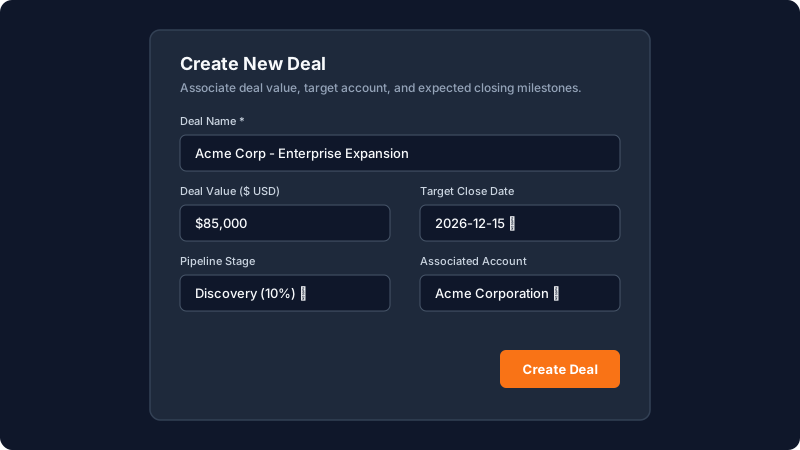
Step 1: Create a New Deal#
- In the sidebar, click on Deals.
- Click + New Deal in the upper-right corner.
- Enter:
- Deal Name: Descriptive title (e.g., Acme Corp - Enterprise Cloud License).
- Deal Value: Commercial monetary amount.
- Associated Account & Contact: Link to the target customer company.
- Target Close Date: Expected signing date.
- Pipeline: Select your sales pipeline (e.g., Direct Sales or Partner Channel).
- Click Create Deal.
Click to enlarge screenshot
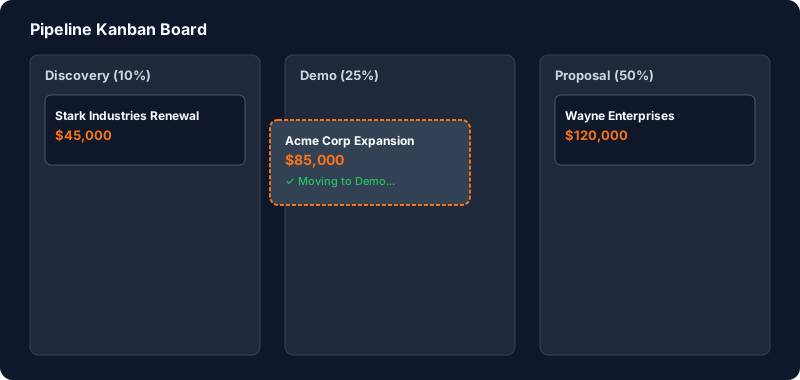
Step 2: Move Deals with Drag-and-Drop Kanban#
- Switch to the Kanban Board view using the view toggle icon at the top right.
- Click and hold the card for your deal.
- Drag it across the board and drop it into the next appropriate stage column (e.g., moving from Discovery to Demo).
- The deal's weighted pipeline value automatically updates based on the new stage's win probability.
Click to enlarge screenshot
Step 3: Closing a Deal (Won or Lost)#
When a deal reaches its conclusion:
- Drag the card into the Closed Won or Closed Lost column.
- If marking Closed Lost, select the Lost Reason (e.g., Budget Frozen, Competitor Chosen, Timing / Deferred). This helps sales leadership diagnose bottlenecks.
- Click Confirm Status.
Troubleshooting & FAQs#
Can I create custom pipeline stages?#
Yes. Workspace Administrators can add, reorder, or rename pipeline stages under Settings > Pipelines.
Need Instant Assistance?
Have a question about Managing Deals & Pipeline Stages?
Ask Loop AI for step-by-step guidance, permission requirements, or troubleshooting tips directly within the docs.
On this page
