
Creating & Capturing Sales Leads
Leads represent individuals or organizations that have shown interest in your product or service but have not yet been qualified into formal sales deals.
Before You Begin (Prerequisites)#
- A role with Create permissions for the Leads module (Sales Rep, Sales Manager, or Administrator).
Step 1: Open the Leads Module#
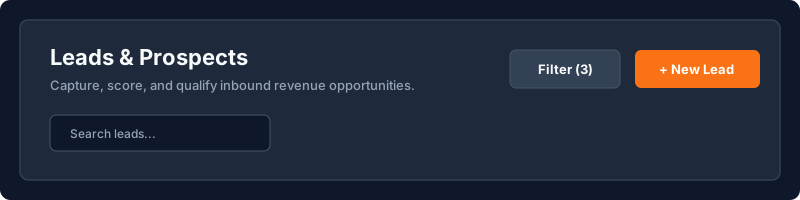
- In the left navigation sidebar, click on Leads.
- Click the orange + New Lead button in the top-right corner of the page.
Step 2: Fill in Essential Prospect Details#
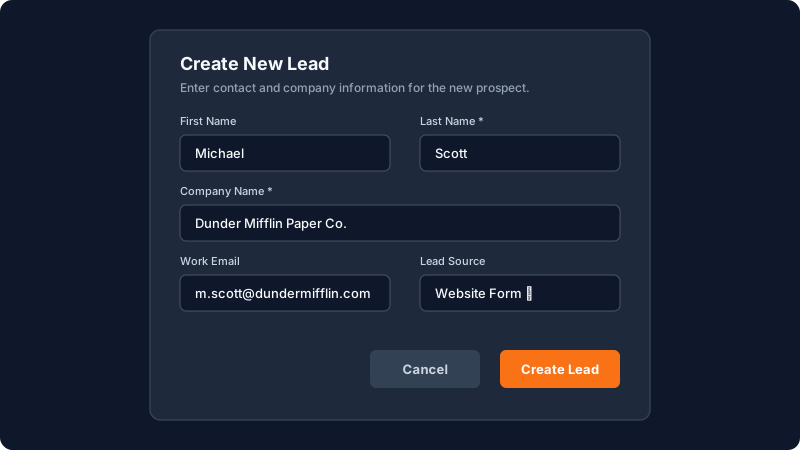
In the modal drawer that appears:
- First Name & Last Name: The contact person's name.
- Company Name: The business or enterprise they represent.
- Work Email: Primary corporate email address for outreach.
- Phone Number: Direct or mobile phone number.
- Lead Source: Select where the lead originated (e.g., Website Form, LinkedIn, Cold Inbound, Referral, Conference).
- Lead Status: Defaults to
New. Other statuses includeContacted,Qualified, andUnqualified.
Step 3: Assign Record Ownership#
- Under the Assignment dropdown, select the designated sales representative.
- Alternatively, leave it assigned to yourself.
- Click Create Lead.
[!TIP] If your organization uses automated lead routing, newly created inbound leads will be assigned automatically based on region or round-robin rules defined in Settings > Lead Assignment.
Step 4: Add Context Notes or Schedule an Initial Call#
Once the lead profile opens:
- Click Add Note in the right-side activity timeline to log your initial discovery conversation.
- Click Schedule Task to set a reminder for a follow-up call.
Troubleshooting & FAQs#
Why is the "Create Lead" button disabled?#
Ensure that all mandatory fields (marked with an orange asterisk *, typically Last Name and Company Name) are filled.
What happens if the lead already exists?#
Crusource CRM automatically checks for duplicate emails and phone numbers. If a duplicate is detected, a warning banner will appear offering a link to merge with the existing lead.
Have a question about Creating & Capturing Sales Leads?
Ask Loop AI for step-by-step guidance, permission requirements, or troubleshooting tips directly within the docs.
