
Querying & Prompting Loop AI Assistant
Loop AI is your intelligent sales copilot inside Crusource CRM. Built on Google Gemini and secure retrieval-augmented generation (RAG), Loop AI answers complex questions about your pipeline, surfaces duplicate accounts, drafts hyper-personalized emails, and explains how to use any feature in the CRM.
Accessing Loop AI#
There are two ways to open Loop AI:
- Click the Loop AI tab in the primary sidebar navigation.
- Click the floating Loop AI Icon in the bottom-right corner of any screen.
- Press keyboard shortcut
Ctrl + J/Cmd + J.
1. Querying Your Live Pipeline & CRM Records#
Loop AI connects directly to your live database metrics and entity records while strictly enforcing your personal role permissions.
Sample Prompts to Try:#
- "How many active deals do we have in the negotiation stage?"
- "Summarize our total pipeline value for Q4."
- "List all contacts associated with Acme Corporation."
- "Show me all tasks that are overdue or due today."
[!NOTE] Loop AI answers using real-time database counts from your workspace. It will never fabricate numbers or disclose records you do not have permission to view.
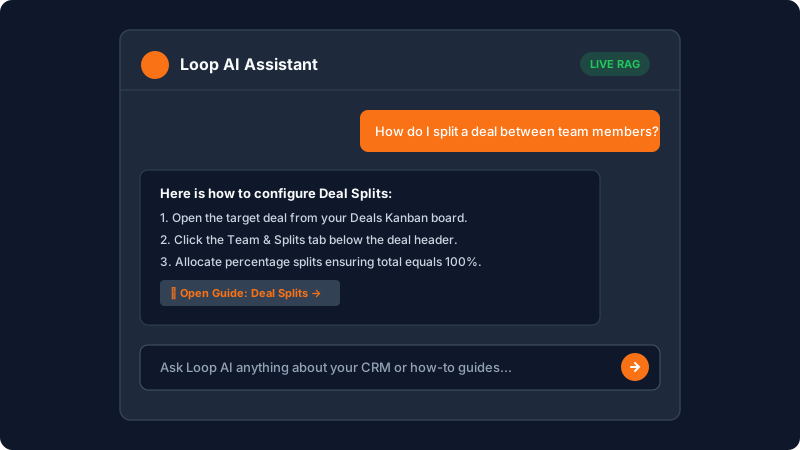
2. Asking "How-To" & System Questions (Knowledge Base RAG)#
If you are unsure where a feature is located or how a workflow operates, ask Loop AI directly:
Sample How-To Prompts:#
- "How do I split a deal between two sales reps?"
- "Where do I upload a CSV file to import leads?"
- "How can I invite a new teammate to my workspace?"
- "How does AI lead scoring calculate the priority score?"
Loop AI will pull the exact step-by-step instructions from this official Knowledge Base and provide a direct link to the corresponding guide.
3. Detecting & Auditing Duplicate Records#
Over time, duplicate contacts or accounts can clutter your CRM. Loop AI has a dedicated audit engine:
Sample Prompt:#
- "Check for duplicate accounts or contacts across our CRM."
Loop AI runs a comprehensive scan across company domains, matching phone numbers, and normalized email addresses, presenting a clean table of potential duplicates with one-click merge options.
4. Drafting AI-Powered Sales Emails#
Loop AI can generate contextual emails using the lead's history:
- Open any lead or contact record.
- Click the Draft Email with Loop AI button.
- Enter your prompt (e.g., "Write a friendly follow-up email after our product demo yesterday mentioning our enterprise security compliance.").
- Review the drafted text, make minor edits, and click Send.
Have a question about Querying & Prompting Loop AI Assistant?
Ask Loop AI for step-by-step guidance, permission requirements, or troubleshooting tips directly within the docs.
