
Crusource Docs
Getting StartedUpdated: 2026-11-06
Overview: Get familiar with the sidebar layout, global search, breadcrumbs, and fast keyboard shortcuts.
Crusource CRM Navigation Tour & Shortcuts
Learn how to navigate between customer records, deal pipelines, tasks, and reports efficiently using the primary layout tools and global search.
Overview of the Workspace Layout#
Crusource CRM uses a persistent, collapsible sidebar organized into five logical workspaces:
- Revenue Operations:
- Dashboard: High-level sales velocity, conversion KPIs, and revenue quotas.
- Leads: Unqualified prospects, inbound inquiries, and AI-scored opportunities.
- Contacts & Accounts: B2B client organizations and their individual decision-makers.
- Deals: Interactive Kanban pipelines tracking active deals across sales stages.
- Activity & Execution:
- Tasks: To-dos, follow-ups, and milestone deadlines.
- Meetings & Calls: Calendar synchronization and call log history.
- Documents: Contract attachments, NDAs, and proposals.
- Intelligence & Analytics:
- Loop AI Assistant: Conversational CRM copilot for analytics, audits, and drafting.
- Reports & Boards: Custom tabular and matrix sales reports.
- Administration:
- Teamspace: Teams, user invitations, and record visibility policies.
- Data Administration: CSV imports, exports, and scheduled backups.
Step 1: Using Global Command Search (Ctrl + K / Cmd + K)#
- Press
Ctrl + K(Windows) orCmd + K(Mac) anywhere inside the CRM. - Type any contact name, company domain, or deal title.
- Use the arrow keys to highlight the matching result and press Enter to jump directly to the record.
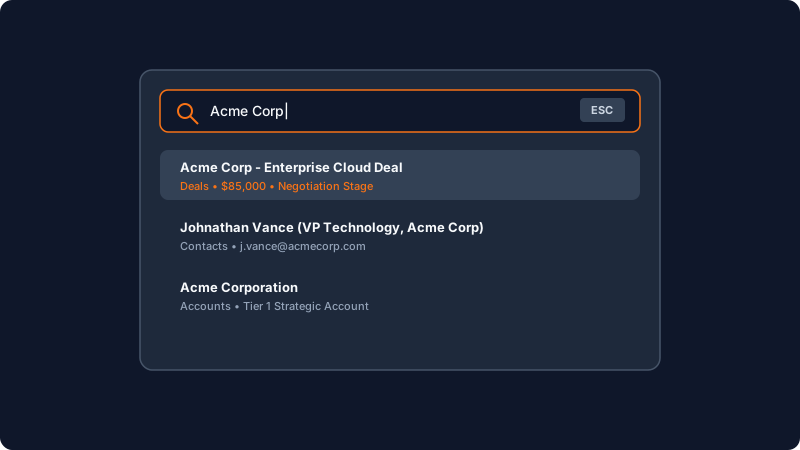
Click to enlarge screenshot
Step 2: Collapsing or Expanding the Sidebar#
- Hover over the left edge of the sidebar.
- Click the collapse arrow icon at the top of the sidebar.
- The sidebar collapses into compact icon mode, maximizing screen real estate for wide Kanban pipelines and data tables.
Essential Keyboard Shortcuts#
| Shortcut | Action |
|---|---|
Ctrl + K / Cmd + K | Open Global Search modal |
N then L | Quick-create a new Lead |
N then D | Quick-create a new Deal |
Escape | Close active modal, sheet drawer, or search dialog |
? | Show available shortcuts cheat-sheet |
Need Instant Assistance?
Have a question about Crusource CRM Navigation Tour & Shortcuts?
Ask Loop AI for step-by-step guidance, permission requirements, or troubleshooting tips directly within the docs.
On this page
